![Logo.webp]](https://support.atlantictraining.com/hs-fs/hubfs/Logo.webp?height=40&name=Logo.webp)
Updated: July 15, 2026
Applicable Roles: Company Manager
Prerequisites:
- SCORM, Tin Can, or AICC file
- Course Builder access
Step-by-step guide:
- From your Course Builder dashboard, click on "Create Course".
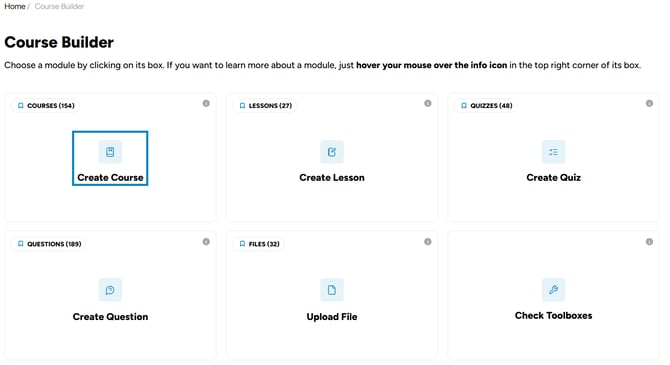
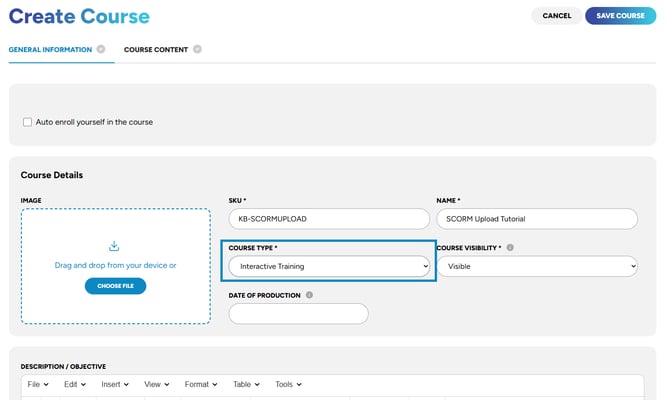
- Complete all required fields and ensure the course type is set to "Interactive Training".
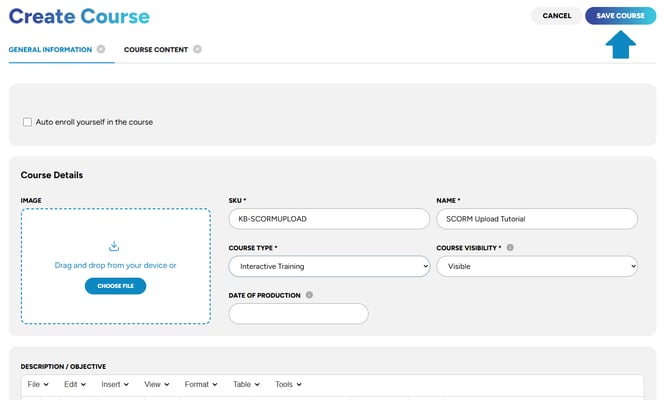
- Once everything is set, save the course.
- Once the course is created, navigate to the "Course Content" tab.
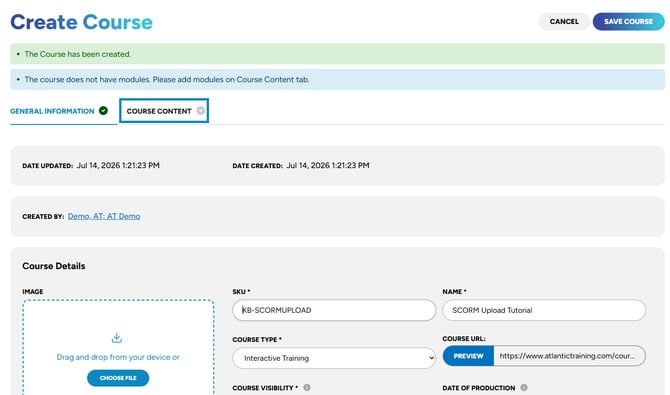
- On this screen, you can add modules, including a SCORM, Tin Can, or AICC module.
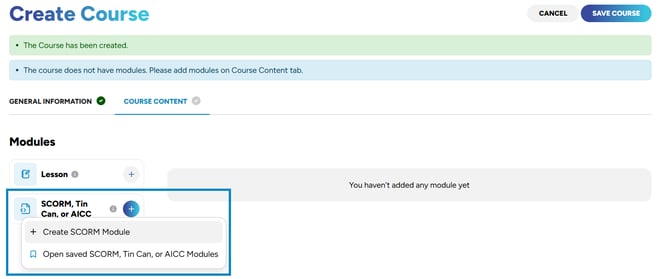
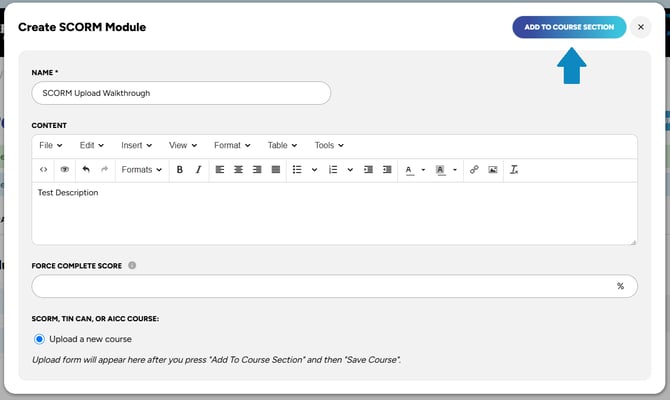
- Enter a name for the module, then click "Save".
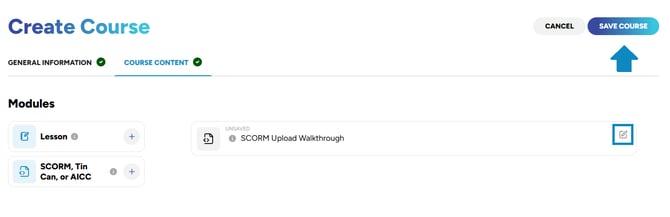
- After the module is created, save the course, then reopen it for editing by selecting the edit icon.
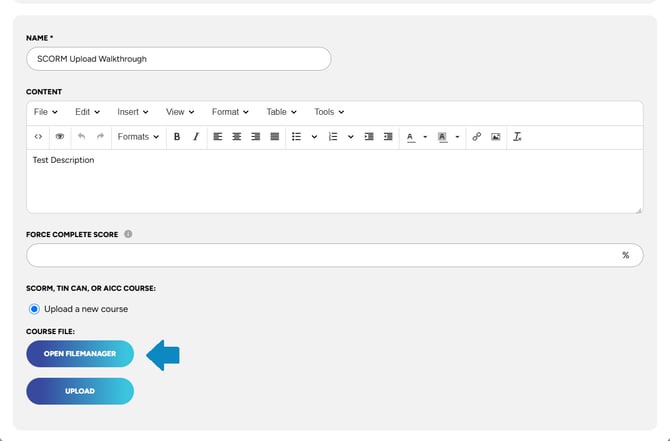
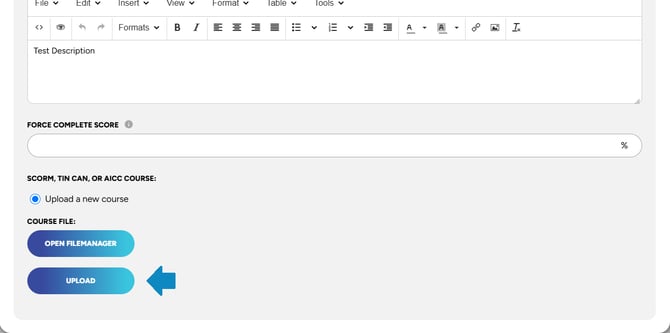
- Scroll to the bottom of the page, where you can add the SCORM, Tin Can, or AICC file, then select "Open File Manager".
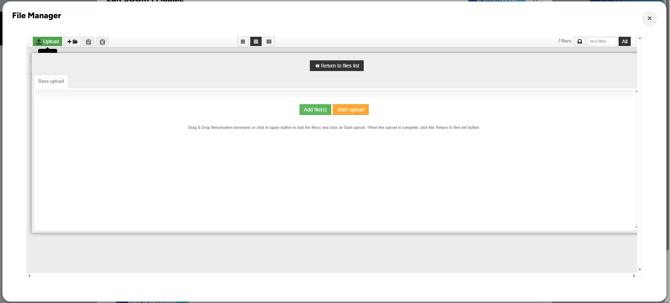
- Click the upload icon in the upper-left corner of the file manager to open the uploader. When the uploader opens, follow the on-screen instructions to attach your file.
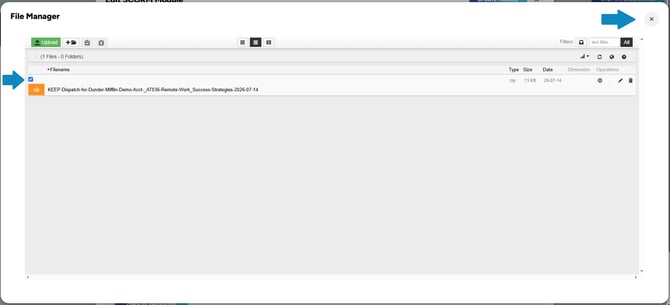
- Once you return to the file list, select the appropriate file and close the file manager.
- If the file has been successfully attached, click "Upload" to proceed.
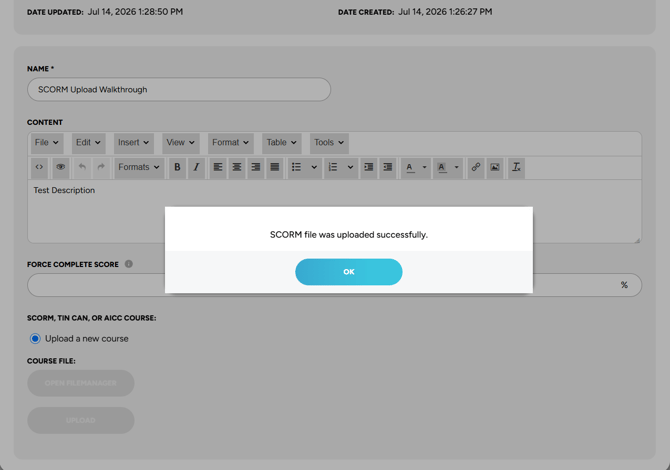
- When the message “SCORM file was uploaded successfully” appears, the upload process is complete.
Once you complete the final step, your course is ready to preview or assign to users.
"If you need further assistance after reading this article, please submit a ticket HERE and someone from our team will assist you soon!"